compute
SSH Keys
Upload your public key once, reference it by name at VM-create time, and it gets installed into the default user's authorized_keys.
An SSH key record stores one of your public keys against a friendly name. You reference that name (or the raw key) when creating a VM and Excloud installs it into the default user’s ~/.ssh/authorized_keys at first boot.
Register a key
# From a file
exc compute key create --name my-key --ssh-public-key-path ~/.ssh/id_ed25519.pub

# Or inline
exc compute key create --name my-key --ssh-public-key "ssh-ed25519 AAAA…"
List / delete
exc compute key list
exc compute key delete --id 3
Console
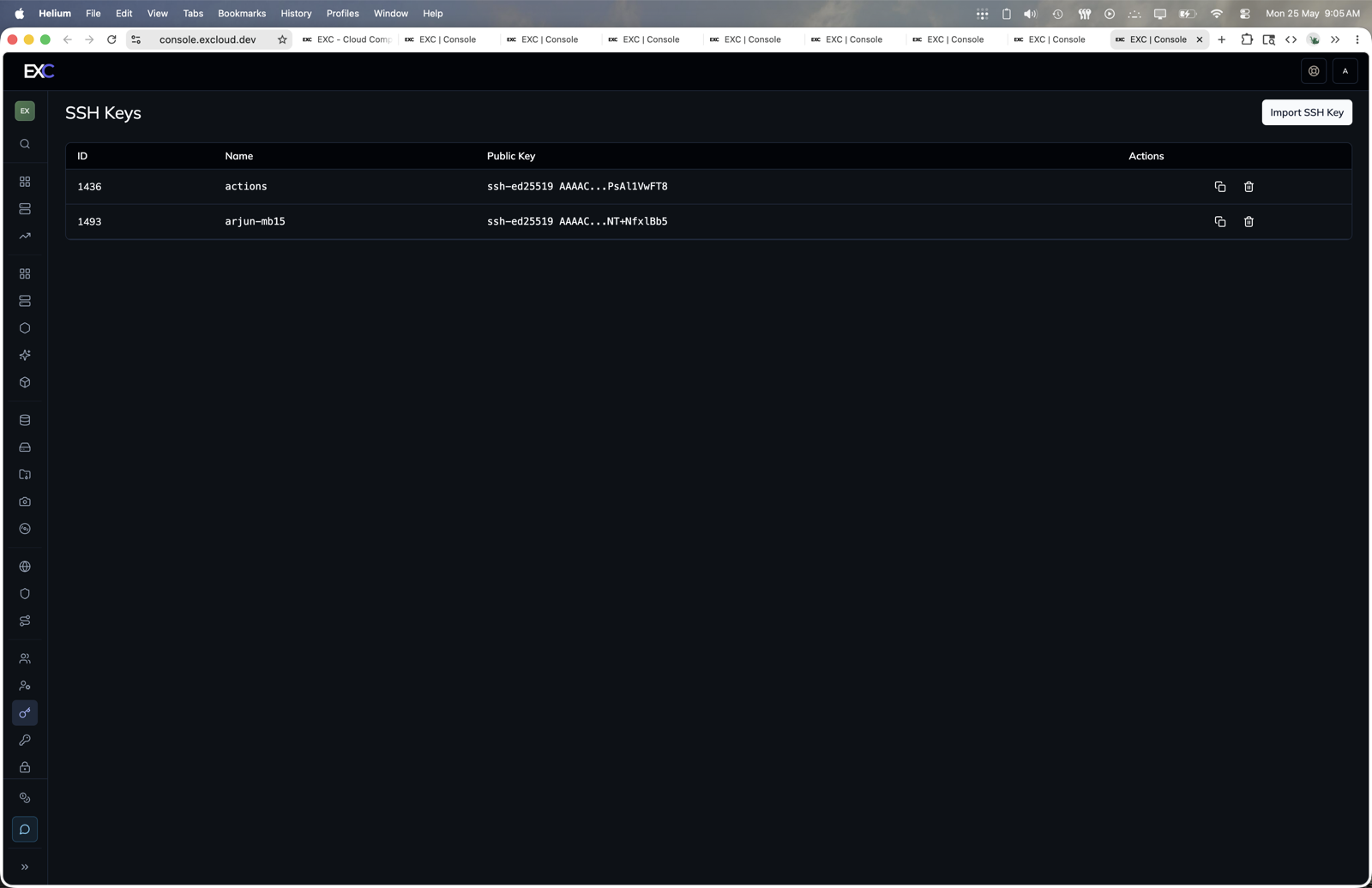
- Open console.excloud.dev/console/ssh-keys.
- Click Import SSH Key.
- Enter a name, paste the public key, and import it.
- Use the row actions to copy or delete existing keys.
Use at VM create
Pass either the registered name or a raw public key string:
exc compute create --ssh_pubkey my-key ...
exc compute create --ssh_pubkey "ssh-ed25519 AAAA…" ...
The CLI sends whichever you supplied; the server resolves a name to the stored key.
Default user
The default Linux user depends on the image:
| Image | User |
|---|---|
| Ubuntu | ubuntu |
| Excloud Ollama (Ubuntu-based) | ubuntu |
exc compute connect and exc compute exec default to ubuntu; pass --user if you’ve created another account.
Rotation
Registered keys are inserted only at first boot. Rotating a key on an existing VM is your responsibility:
exc compute exec --vm-id 42 --command 'echo "ssh-ed25519 AAAA…" >> ~/.ssh/authorized_keys'…or, much better, just use Instance Connect and stop rotating long-lived keys altogether.
Terraform
The matching resource is excloud_ssh_key, which slots into excloud_compute_instance.ssh_pubkey.